
Task: Register New Account
Register your account.
Note:
Register your new account before using the PrepScanner App.
Get your University Code before you
register.
-
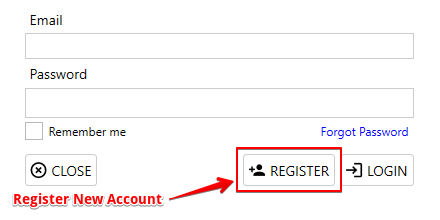
Click Register from the PrepScanner App startup screen.
-
Fill in the required registratation details such as your first and last name,
email address, role and password. If you have an access code enter it, otherwise
click Request to receive one by email.
Figure 1. Registration Details Page 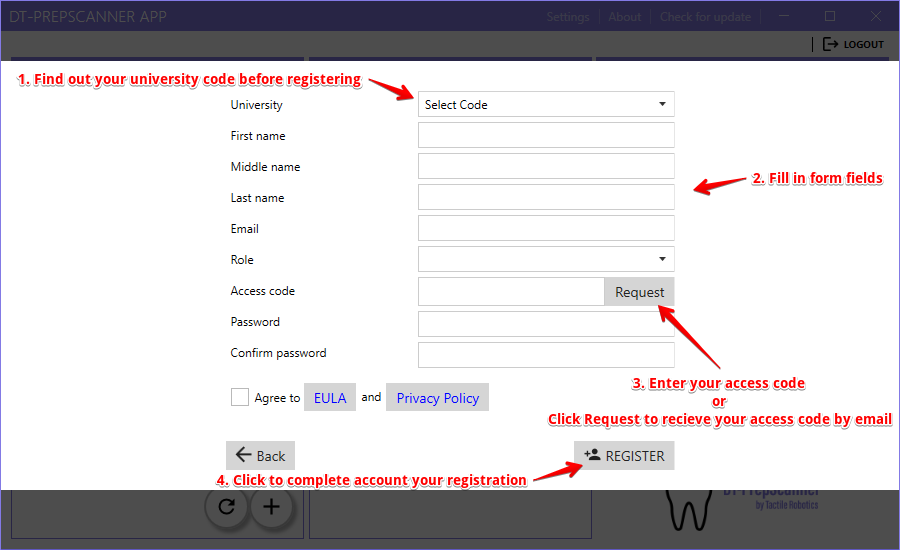
-
Note:If you don't have an access code, then click Request to have one emailed to the email address in this form.
- Click Register when you have filled in all the required fields
- Your account should be successfully registered and you will see the main app screen.